
How to Set Up Products & Start Selling Online in Fortunyx
Ready to see those sales roll in? Your online store is all set up to handle whatever you're selling - physical products, digital downloads, subscriptions - you name it! Let's dive into how you can easily get started and start generating revenue right away.
TABLE OF CONTENTS
- How to Create a Product
- One-Time Products
- Recurring Products
- How to Set Up a Trial
- How to Make Products Available
- How to Add Order Element
- Frequently Asked Questions
- Related Articles
How to Create a Product
First things first, let's get your amazing product listed. Think of this like setting up your store shelves—you want everything clear, attractive, and inviting!
Step 1: Navigate to Products
Navigate to Payments > Products. Then Click + Create Product.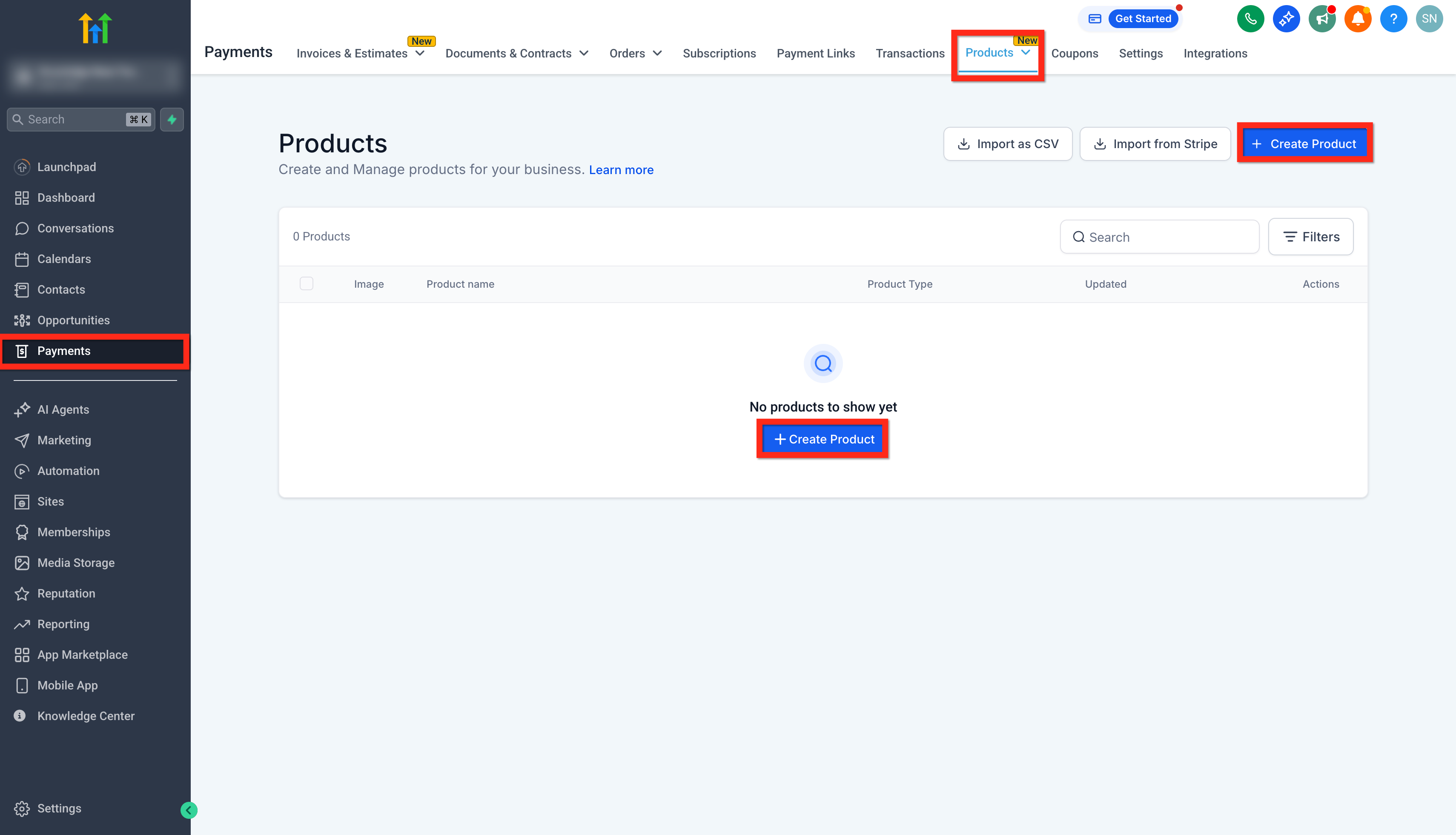
Step 2: Fill in Product Information
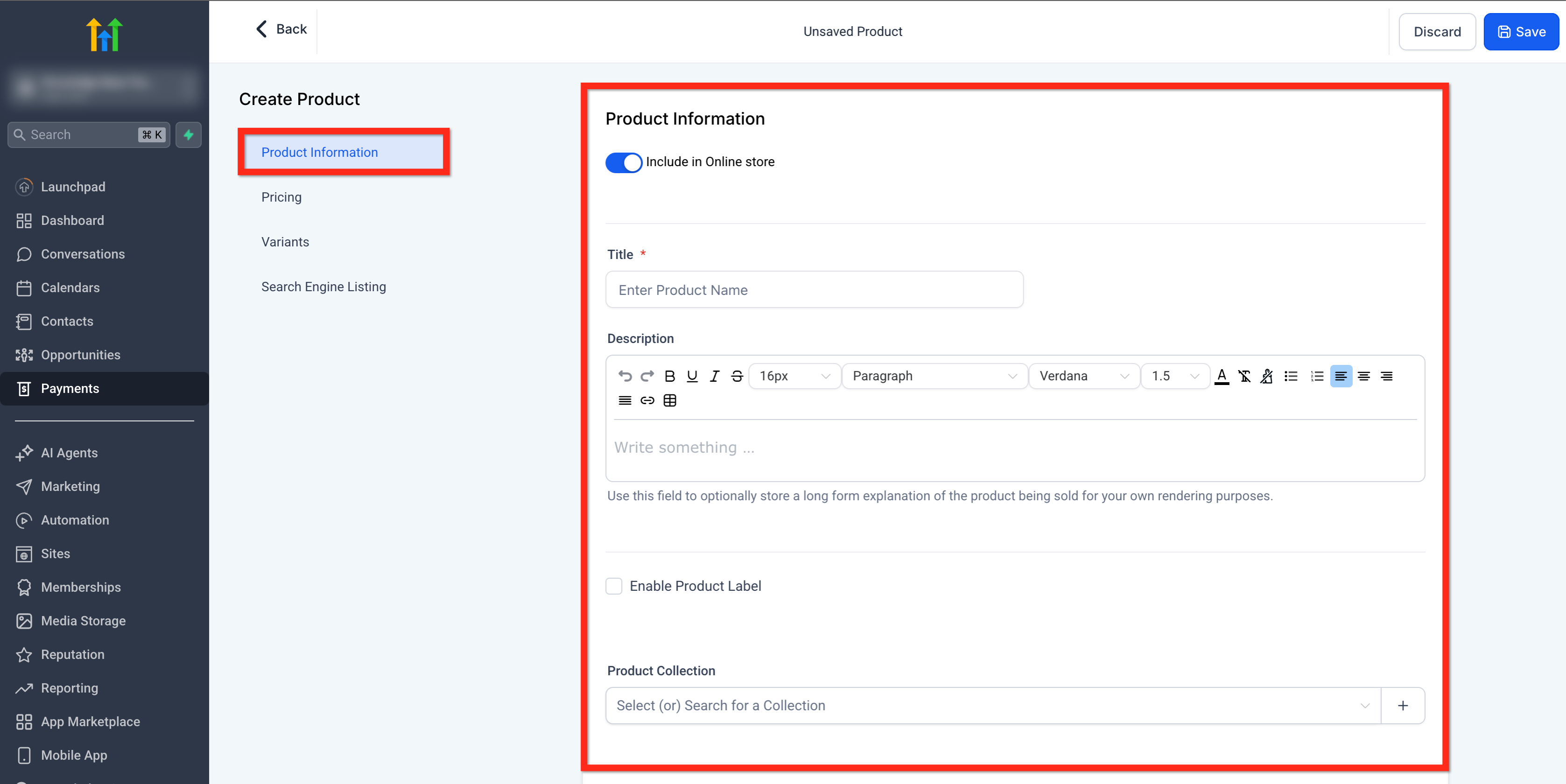
The Product Information section is where you define the foundational details for your product.
- First, the Include in Online Store toggle allows you to determine whether this product should be visible and available for purchase through your online storefront. If you want your product to be publicly available, this toggle must remain enabled.
- Next, the Title field is a required input where you name your product—this will be shown across your checkout, internal views, and potentially public listings. Below that, the Description field allows you to provide a detailed overview of the product, using rich text formatting options such as bold, italics, links, bullet points, and font customization to enhance readability and appeal.
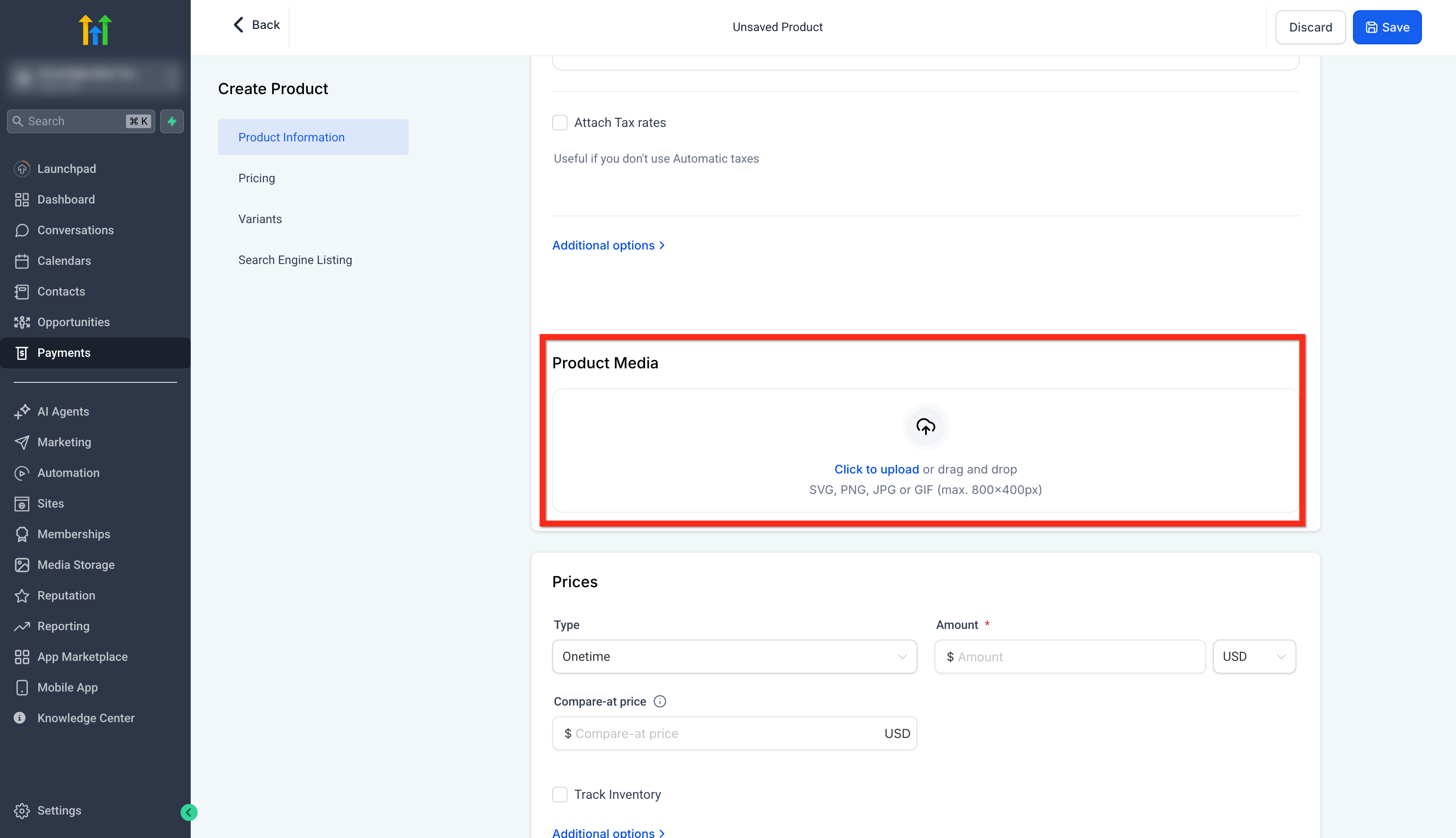
- The Media section lets you upload an image or video file to visually represent your product. This helps users quickly recognize what they’re buying. It’s recommended to upload files with a resolution of 1024×1024 and a size not exceeding 10MB for optimal display and performance.
- There is also an Enable Product Label checkbox. If enabled, you can assign a custom label (e.g., “New,” “Top Pick,” etc.) to the product which may be used for visual badges or internal organization.
- Lastly, the Product Collection dropdown lets you assign this product to an existing collection. Collections help group similar products together for better organization and presentation, especially when managing a larger catalog.
Step 3: Configure Tax Options
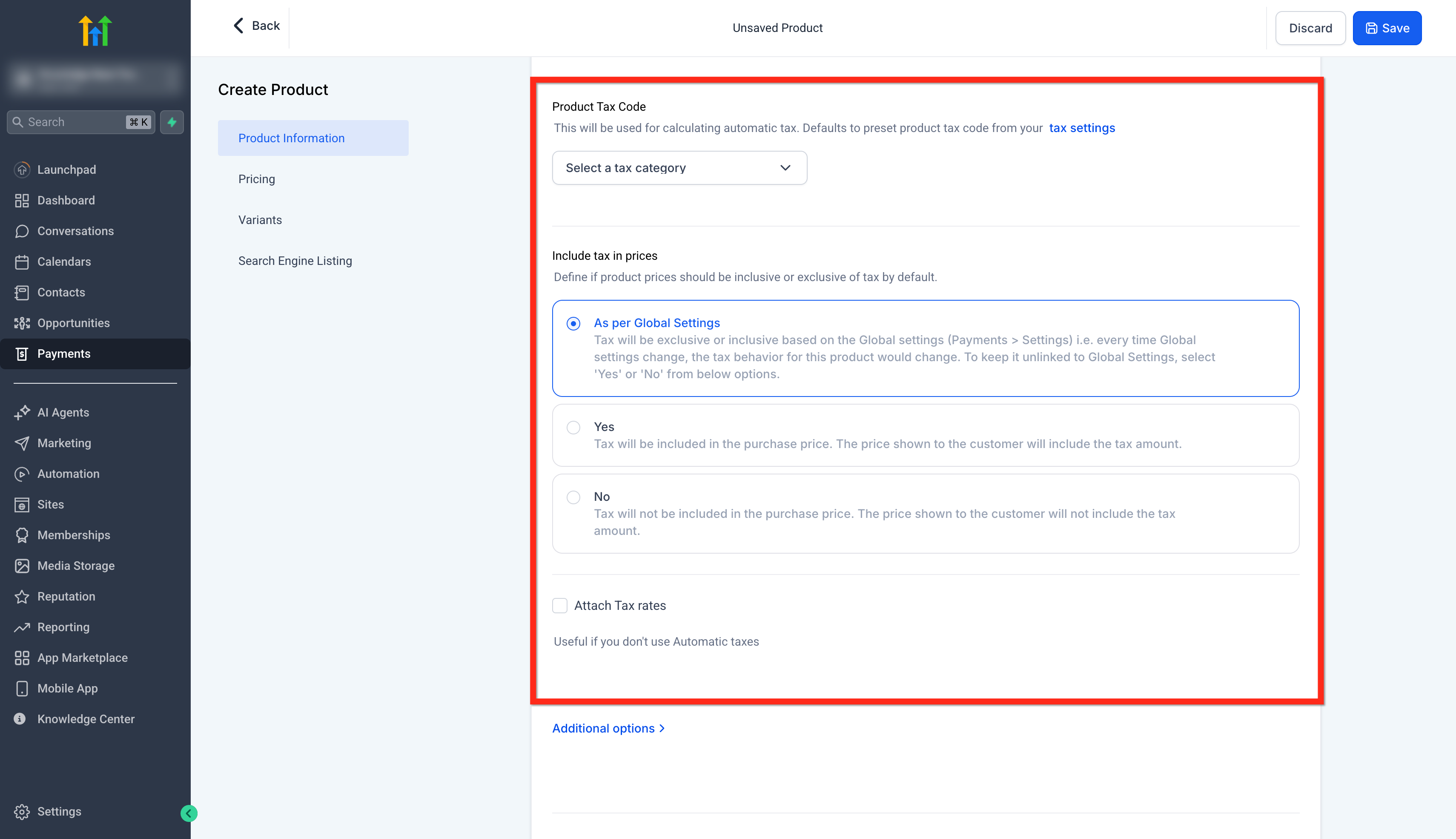
The Product Information section includes several key fields to define how the product is presented and taxed.
- One of the first elements here is the Product Tax Code, which allows you to select a specific tax category for your product. This is important for enabling automatic tax calculations during checkout. If left blank, the system will apply your default global tax settings.
- Next, the Include tax in prices option gives you control over whether your product pricing should be shown as tax-inclusive or tax-exclusive. You can either follow the global setting or manually choose “Yes” to include tax in the displayed price or “No” to show it as a separate charge.
- Additionally, there’s an option to Attach Tax Rates, which is useful if you’re handling taxes manually or have buyers outside the U.S.
- Finally, the Statement Descriptor that opens on clicking Additional Settings field allows you to override the default account name that appears on a customer’s bank statement. This ensures clarity for the buyer and can help reduce payment disputes or confusion.
Step 4: Set Pricing
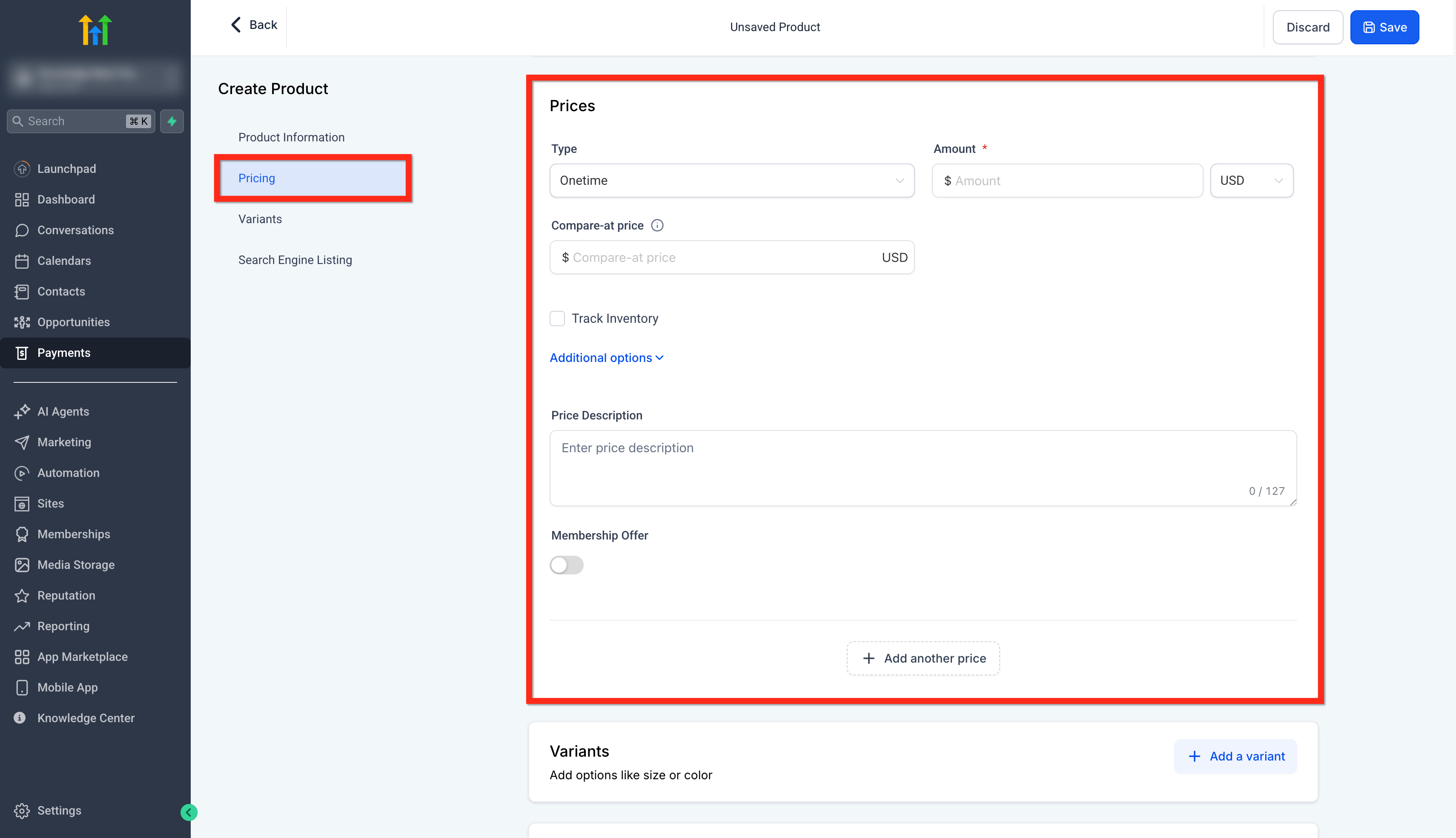
In the Pricing section of the product setup, users can define how their product will be offered to customers by configuring a range of pricing-related fields.
- Start by entering a Pricing Name, which serves as an internal label to help distinguish between different pricing options if you’re offering multiple tiers or plans.
- Next, select the Type of pricing from the dropdown - either One time, which charges the customer a single fee, or Recurring, which adds options for billing cycles, trial periods, and setup fees.
- In the Amount field, input the exact price you want to charge for the product. You can optionally enter a Compare-at Price, which is useful for showing discounted pricing by displaying the original price next to the actual price being charged.
- Below this, use the Currency selector to define which currency the payment will be made in, such as USD.
- If inventory tracking is relevant, check the Track Inventory box to manage stock levels and input available quantities.
- Clicking on Additional Options reveals more advanced pricing settings like purchase limits or metadata fields.
- Use the Price Description field to add a brief note or context for this pricing entry (visible internally).
One-Time Products: Used for a single transaction (e.g., setup fees, initial consultations, or one-off services). The product is charged once on the invoice or payment link.

Recurring Products: Used for subscriptions or services billed at regular intervals (monthly, weekly, annually). When added to an invoice, you must specify the billing frequency (e.g., Monthly) and the start date.

Payment Schedule is Key Difference: When creating an invoice with Recurring Products, you need to ensure the Payment Schedule is correctly configured for the desired billing cycle. One-Time Products do not require a schedule.
Step 5: Add Product Variants
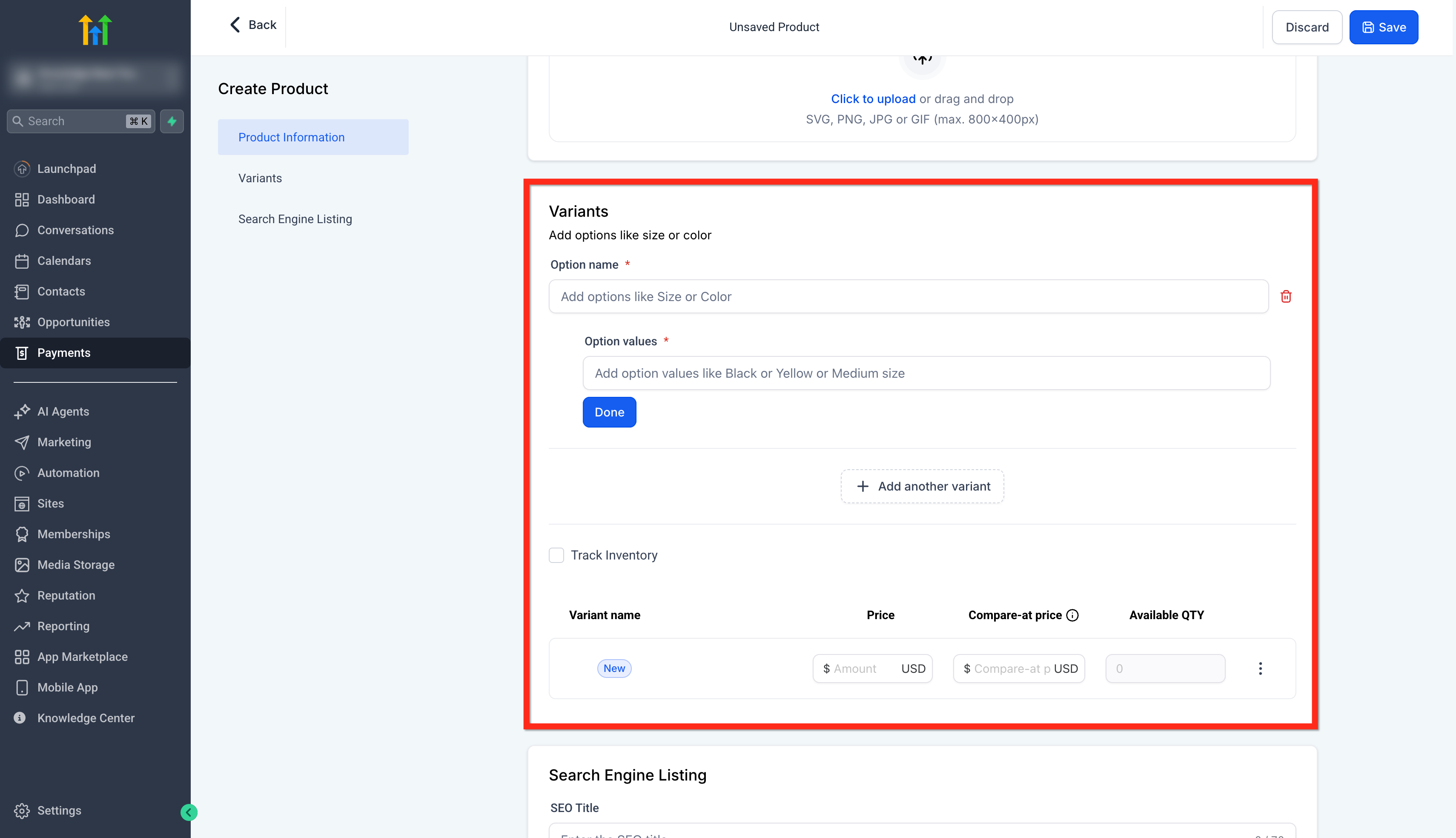
The “Variants” section lets you create different versions of a product, such as multiple pricing tiers, content levels, or access durations.
- To set this up, you first add an Option name like “Course Level” or “Access Plan.”
- Then, under Option values, you input the specific variants (e.g., “Basic,” “Premium,” “Pro”) and click Done.
- Each variant can have its own price, compare-at price, and available quantity, making it easy to manage inventory and pricing for each option.
- You can also enable Track Inventory if you want to limit how many of each variant can be sold. This is especially useful when offering bundles or time-limited enrollment.
Step 6: Optimize Search Engine Settings
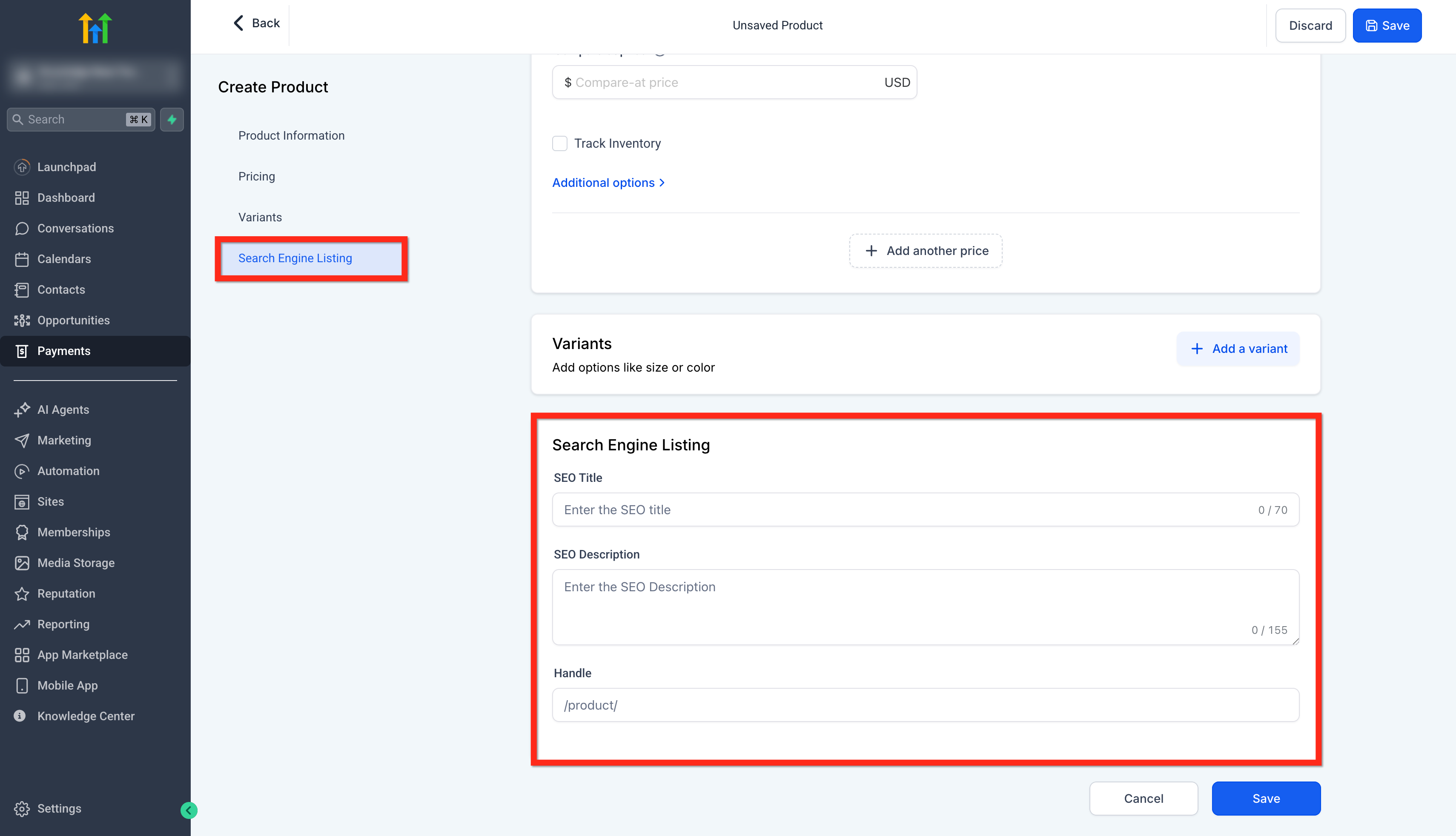
The Search Engine Listing section helps optimize your product for search engines and improves its discoverability online.
- In the SEO Title field, you can enter a concise and relevant title that clearly identifies the product and includes keywords users might search for.
- The SEO Description allows you to provide a brief summary of the product that also incorporates relevant keywords, enhancing visibility in search results.
- Lastly, the Handle defines the product’s unique URL slug (e.g., /product/my-course-name), which can be customized to make the link more readable and SEO-friendly. This section is optional but highly recommended for improving online reach.
Step 7: Save Your Changes
Click Save.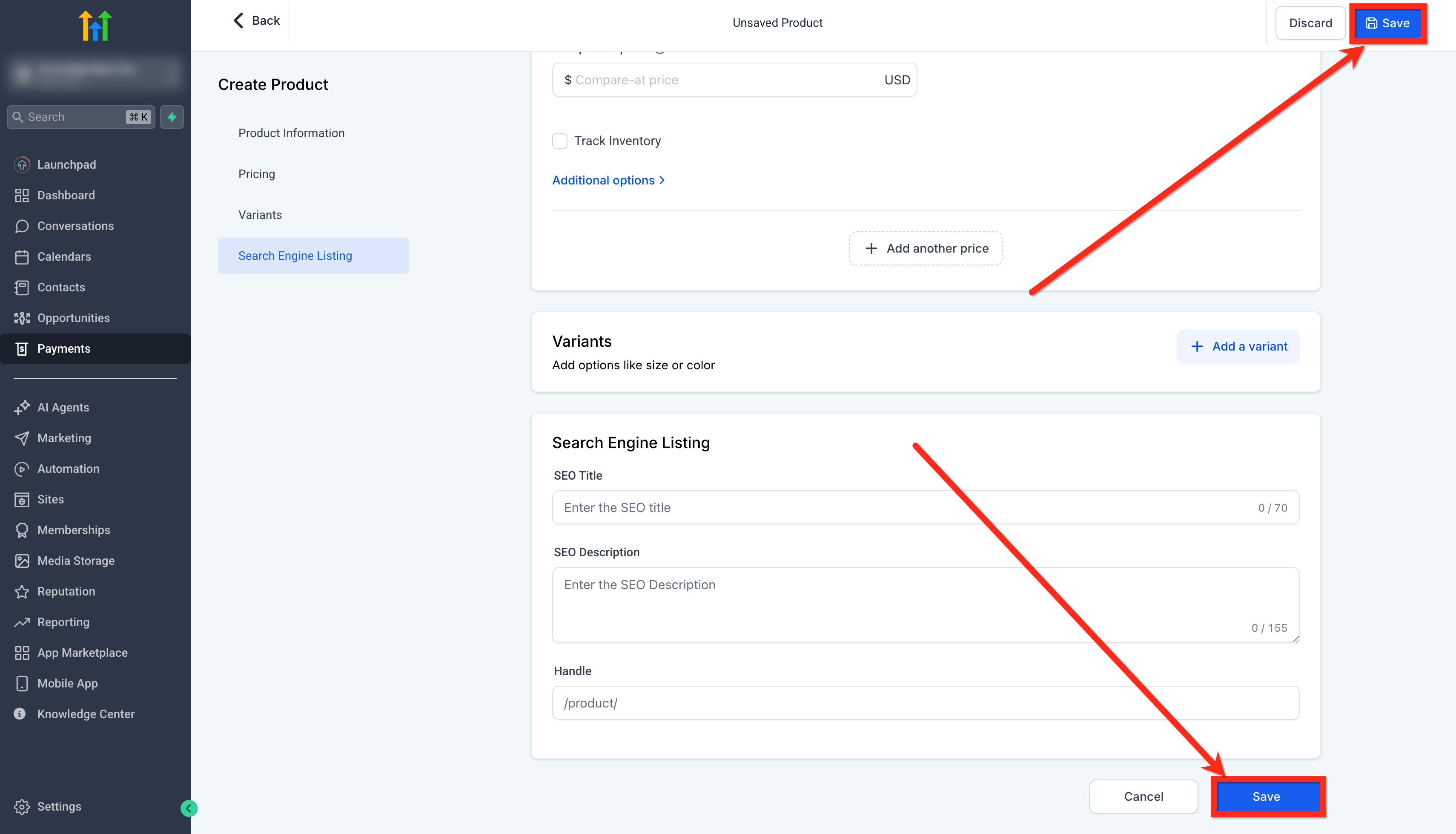
How to Set Up a Trial
Follow these steps to add a trial to your product:
- Go to Payments → Products
- Create a new product or edit an existing one
- Under Pricing, set the product to Recurring (Type)
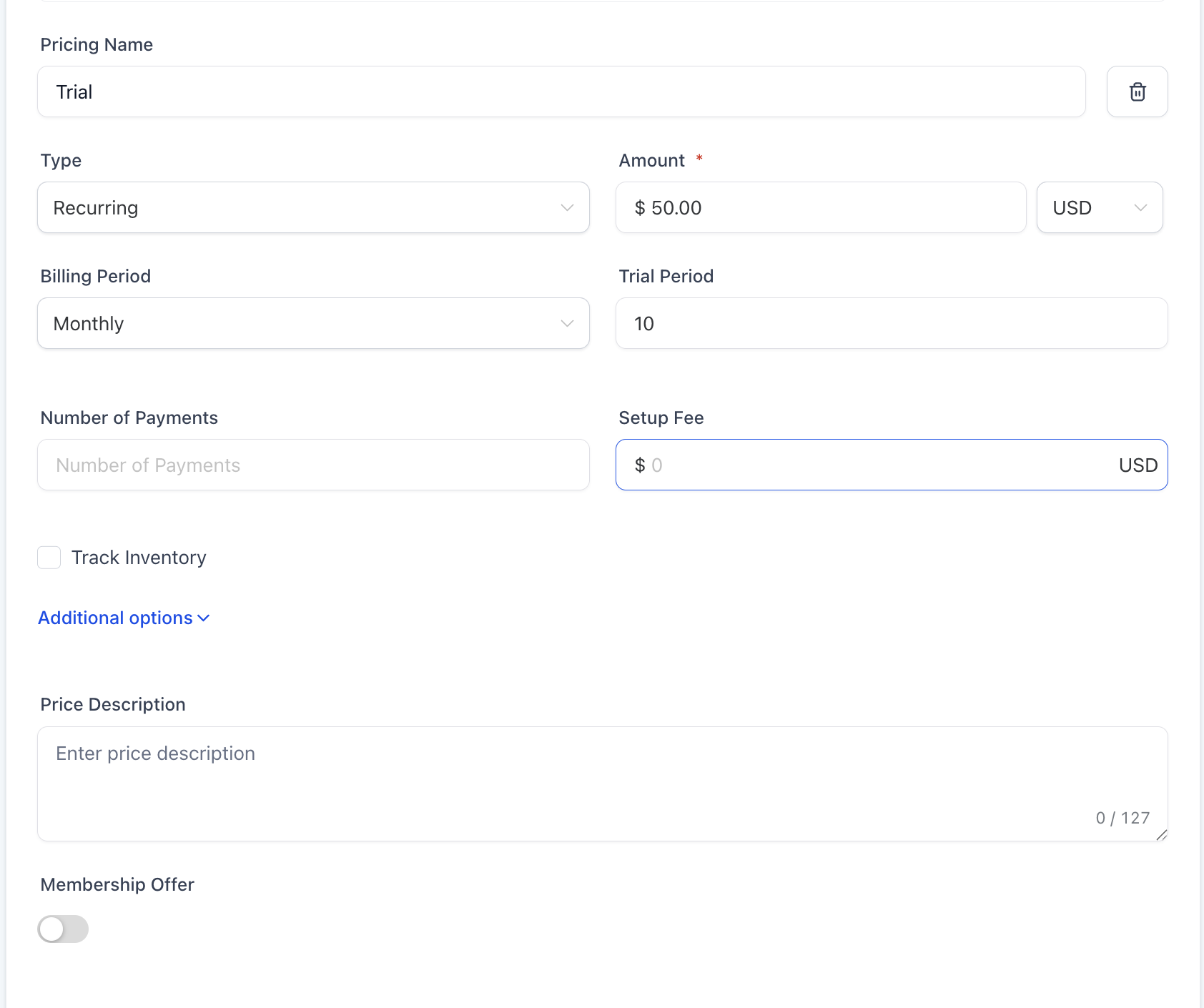
- Enter the amount
- Compare-at price (optional)
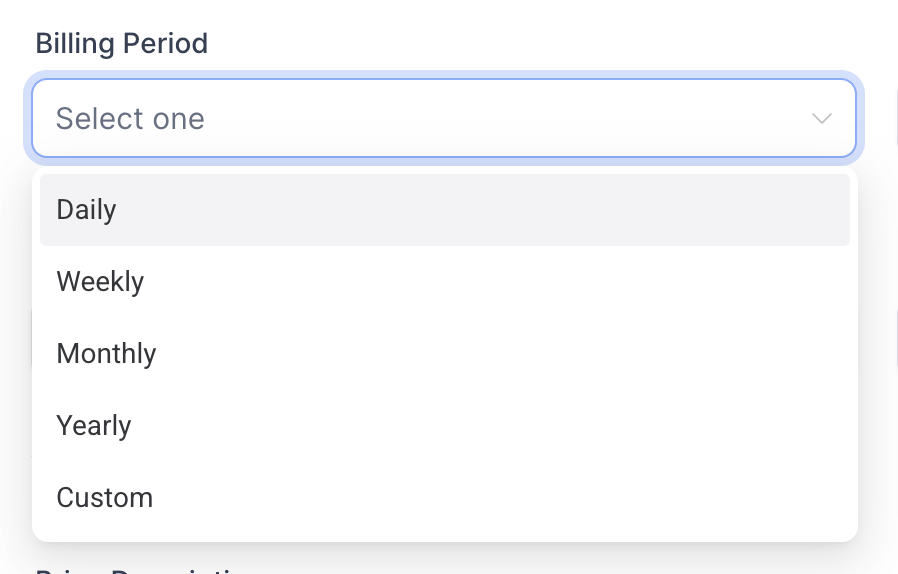
- Select billing period
- Enter Trial period (ex: “5 days”)
- Number of payments and setup fee (Optional)
- Save your product
- Add the product to an order form, invoice, or checkout page
How to Make Products Available
Great job creating your product! Now, let's make sure customers can actually find and buy it. Think of this step like stocking your storefront—visibility is everything. If you are selling digital products, ensure that digital files are uploaded to each product variant. Without uploaded files, customers will not see download options after checkout.
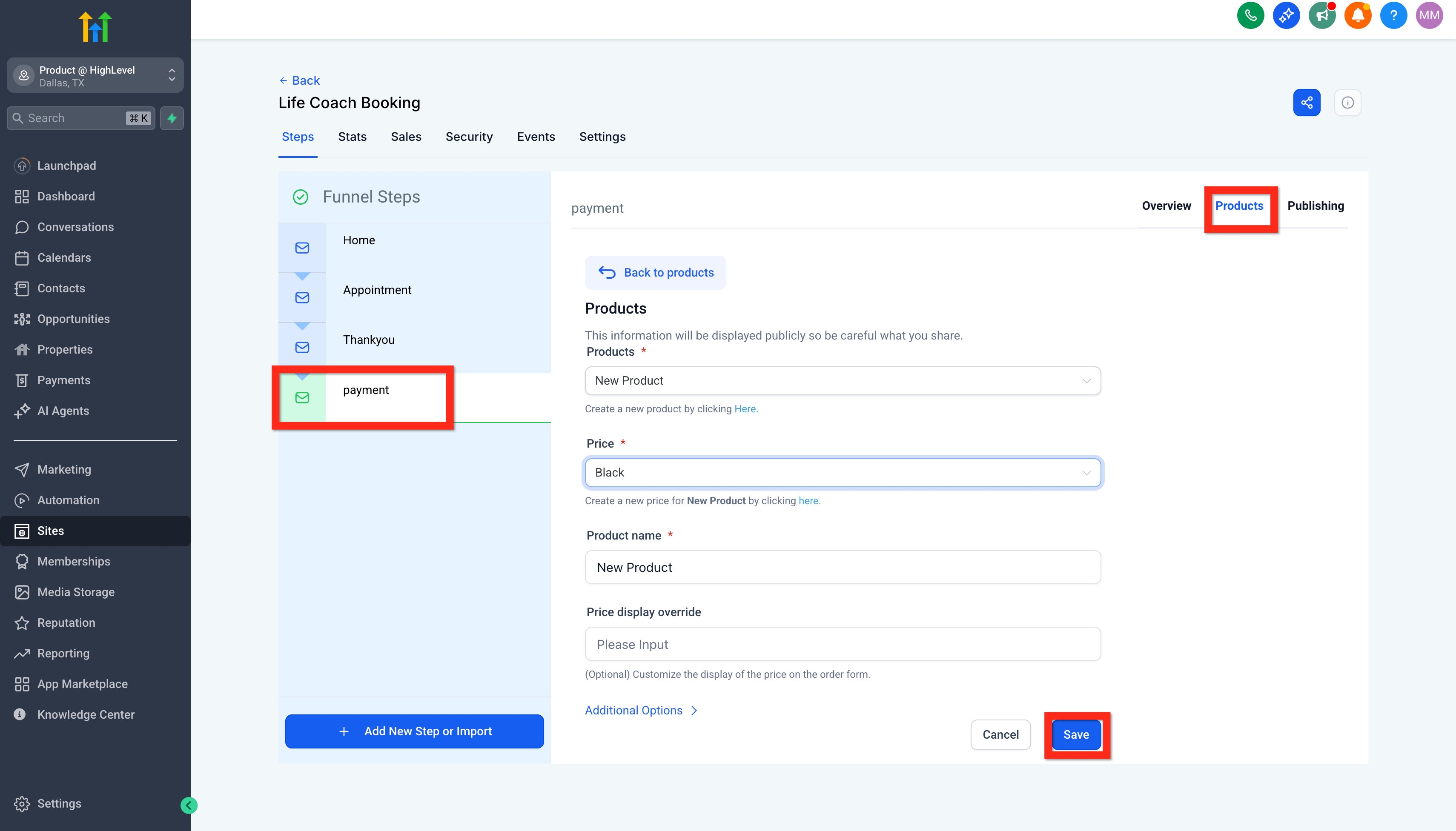
Navigate to Sites and choose where you want your product to appear: Website, Funnel, or Store.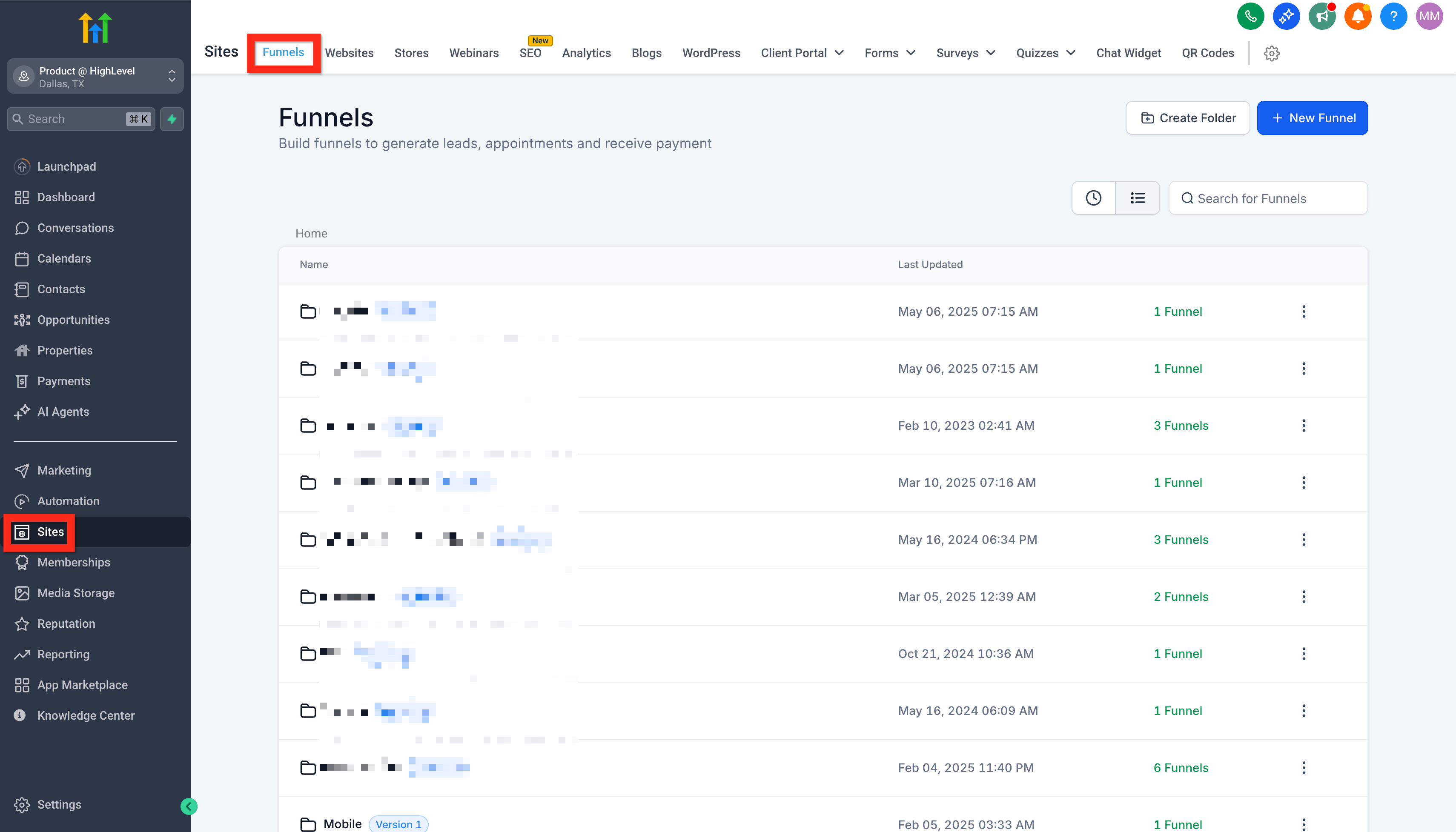
For Funnels specifically:
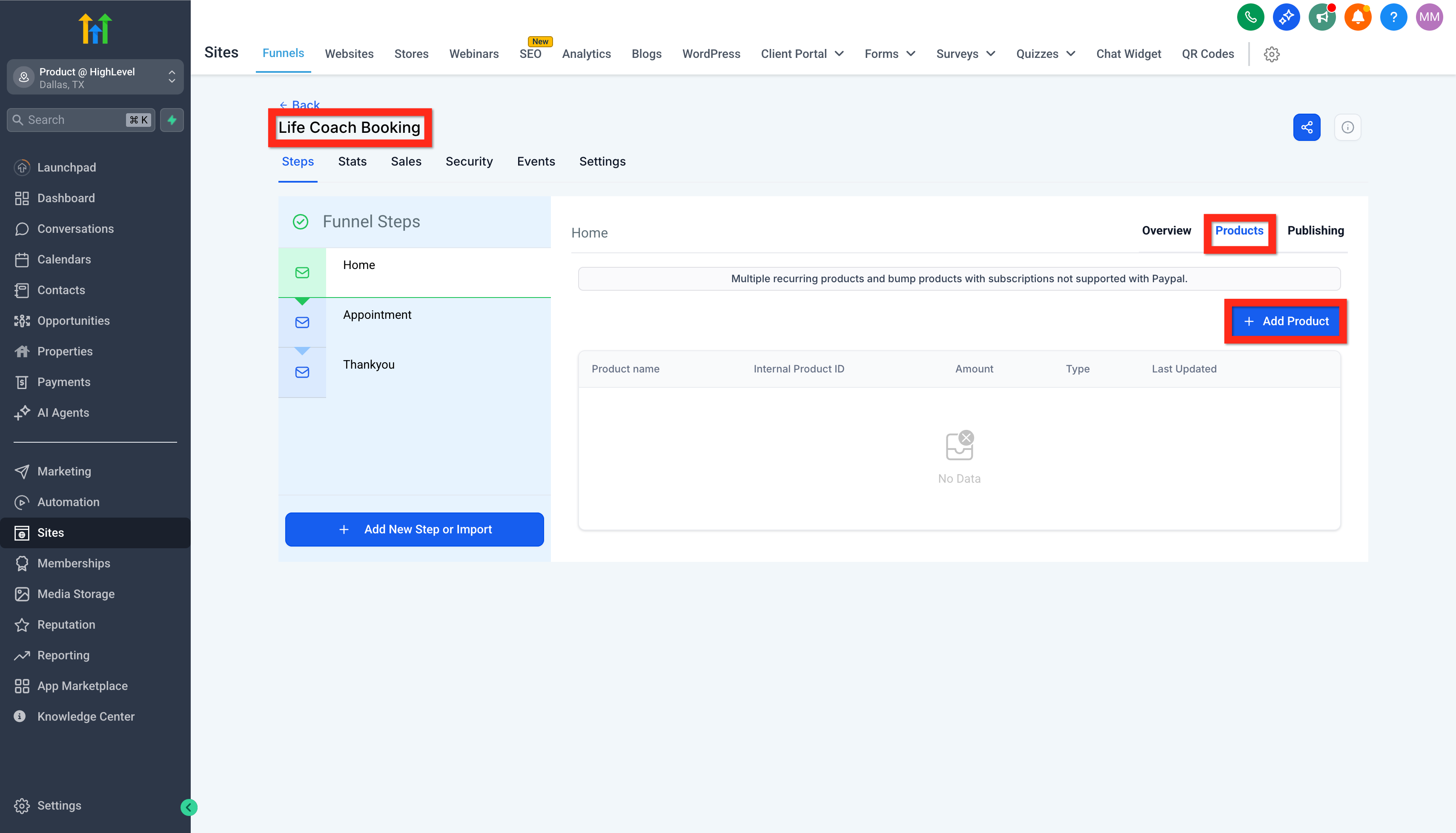
- Click Funnels and select your desired funnel
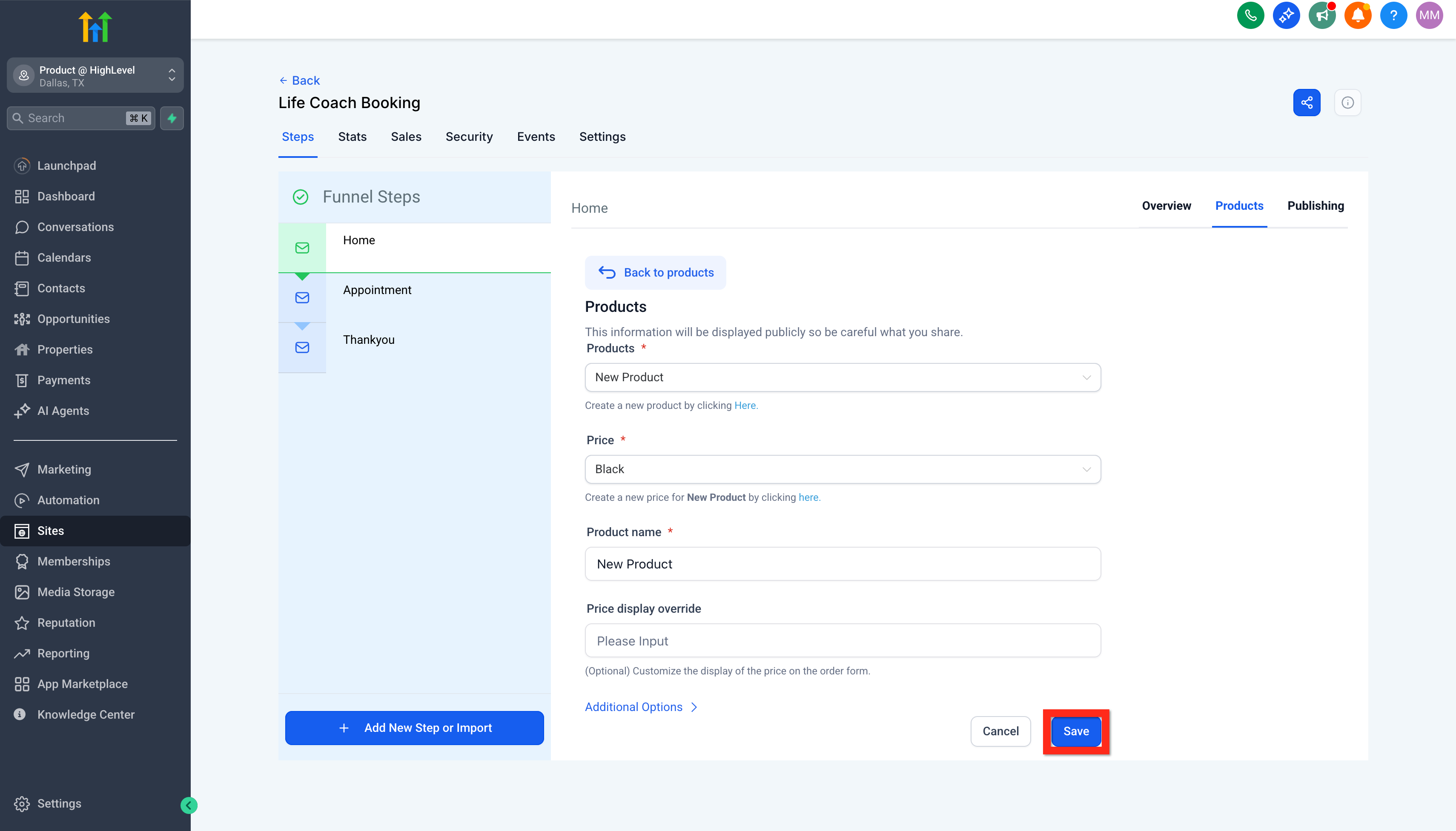
- Go to the Products tab
- Click Add Product
- Configure your product details
- Click Save
How to Add Order Element
Alright, your product's ready and visible—now let's get the checkout process streamlined! Think of this step like opening the cash register—quick, easy, and secure.
- Navigate to the Site Editor
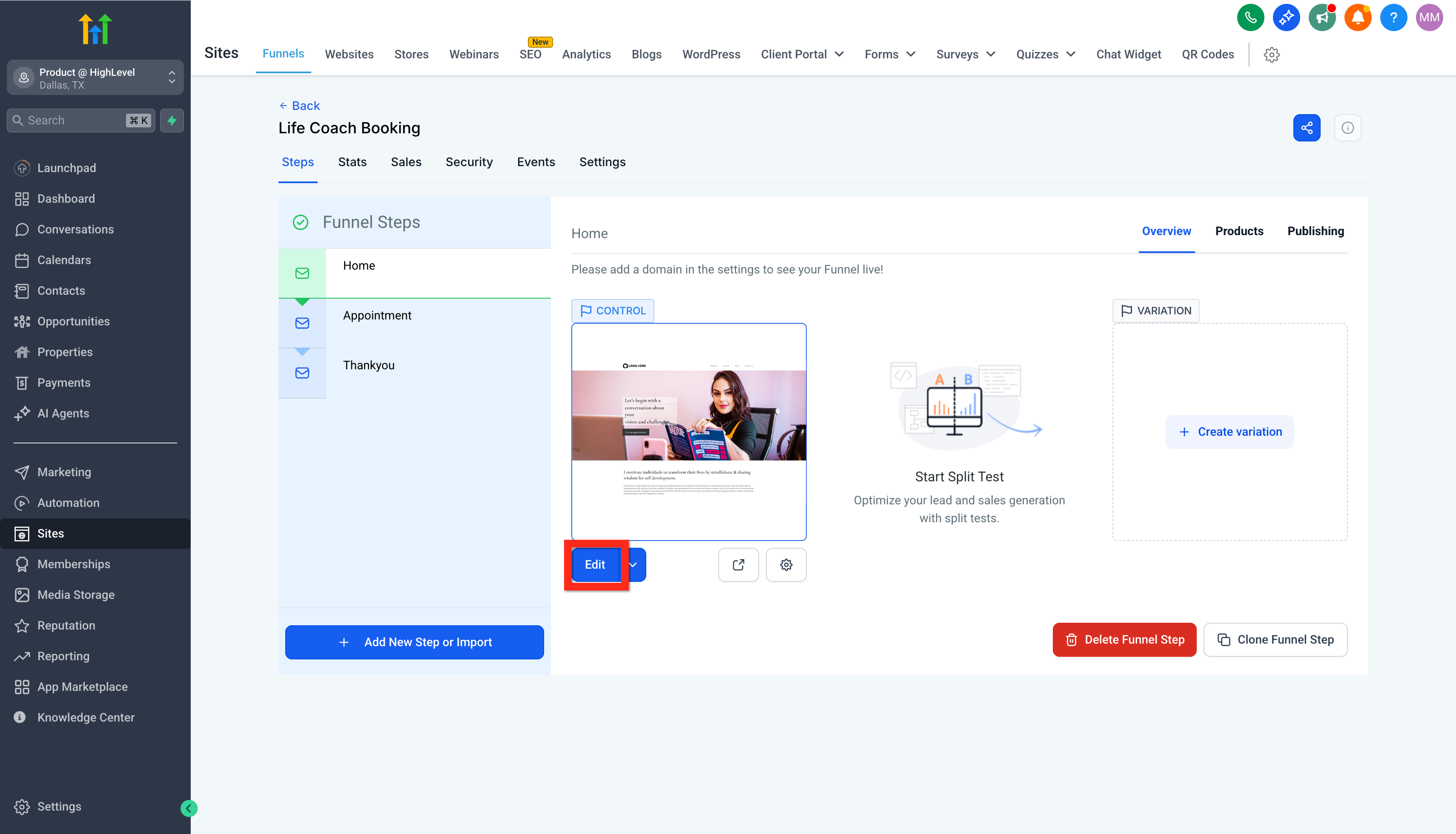
- Select the funnel page that will have the checkout form. If that page doesn't exist yet, create it:
- Click Add New Step.
- Fill out the details and click Create Funnel Step.
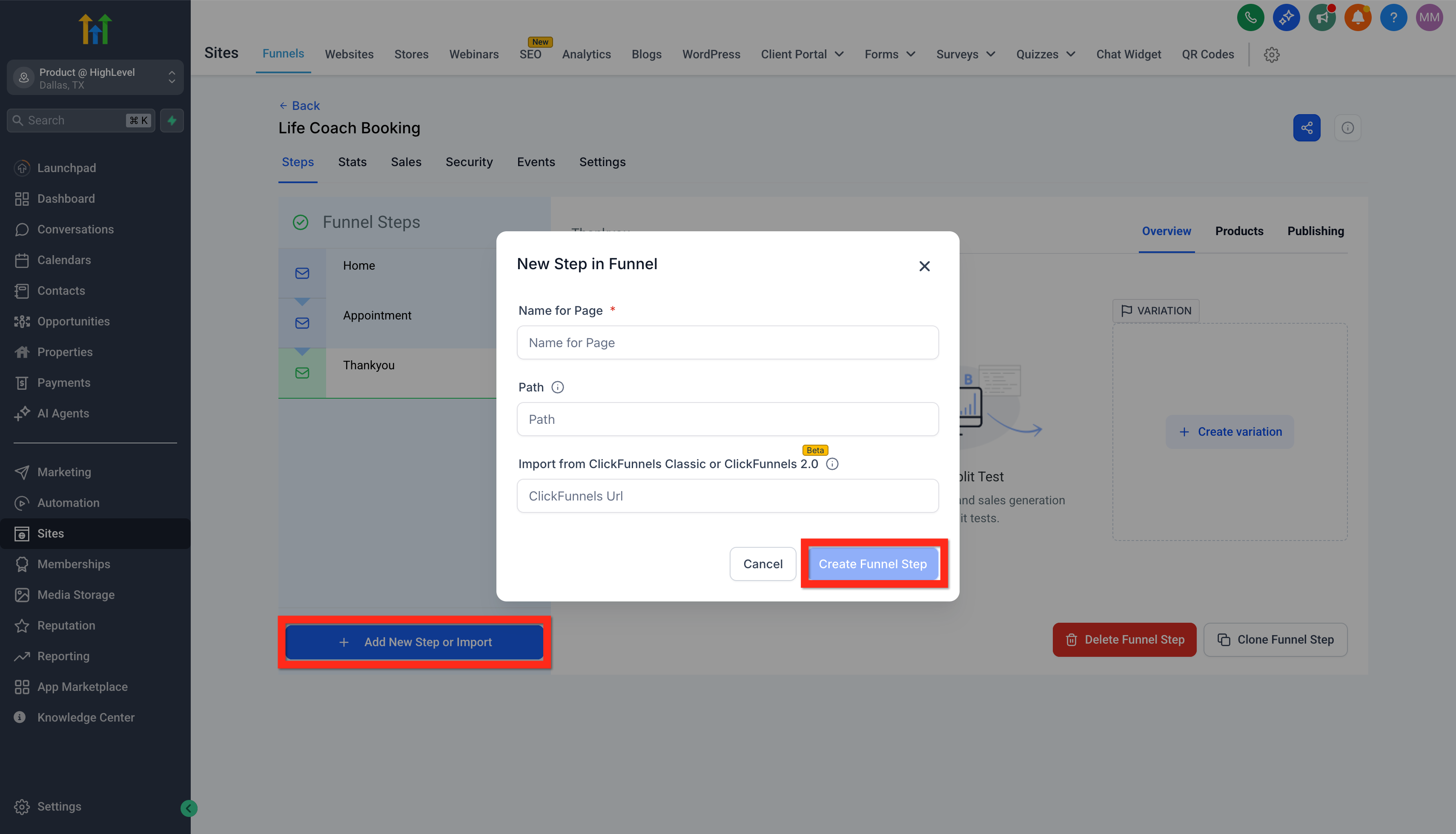
- Click Add New Step.
- On the page, add a full width section element.
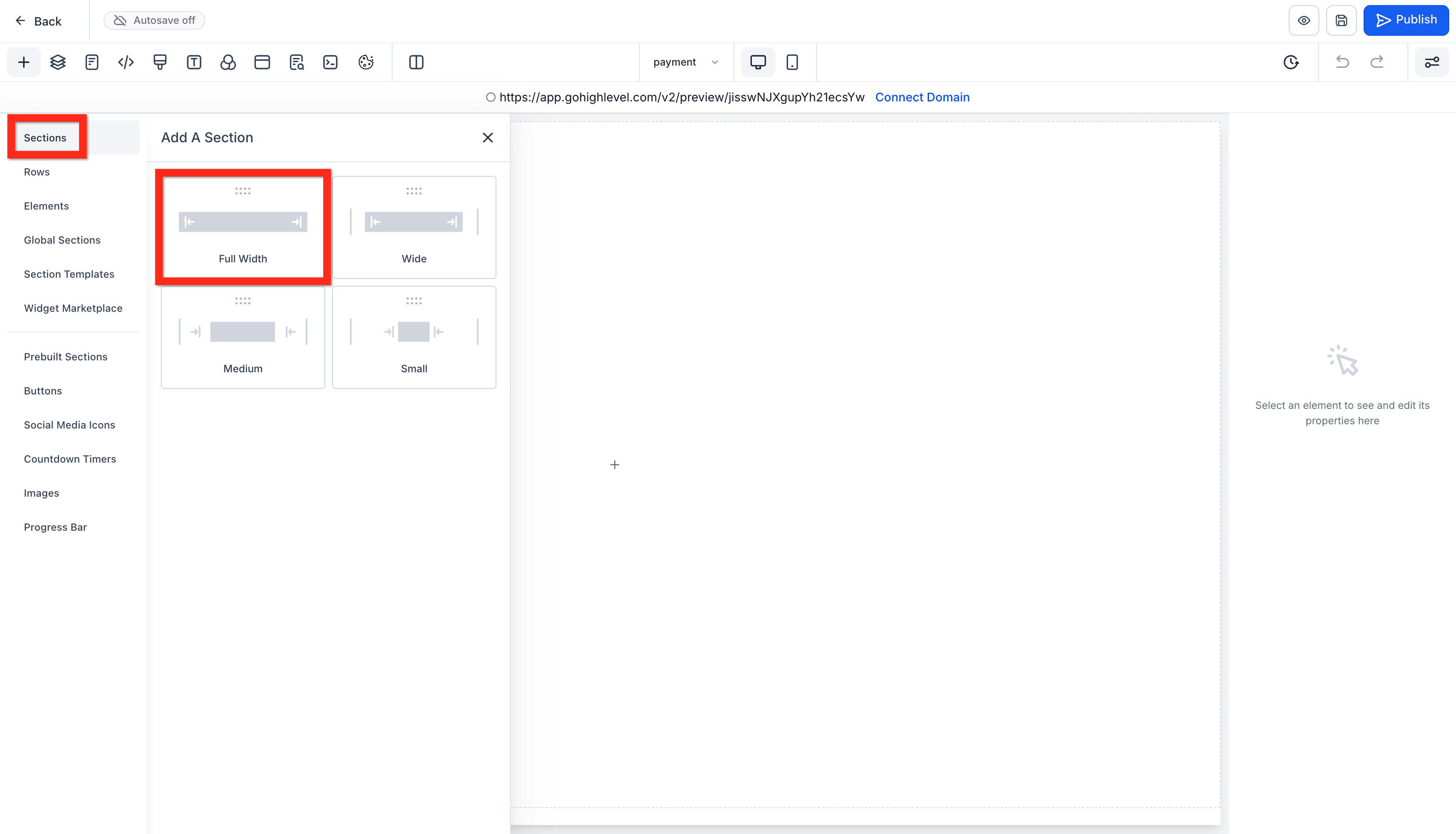
- Inside the section, add a one column row.
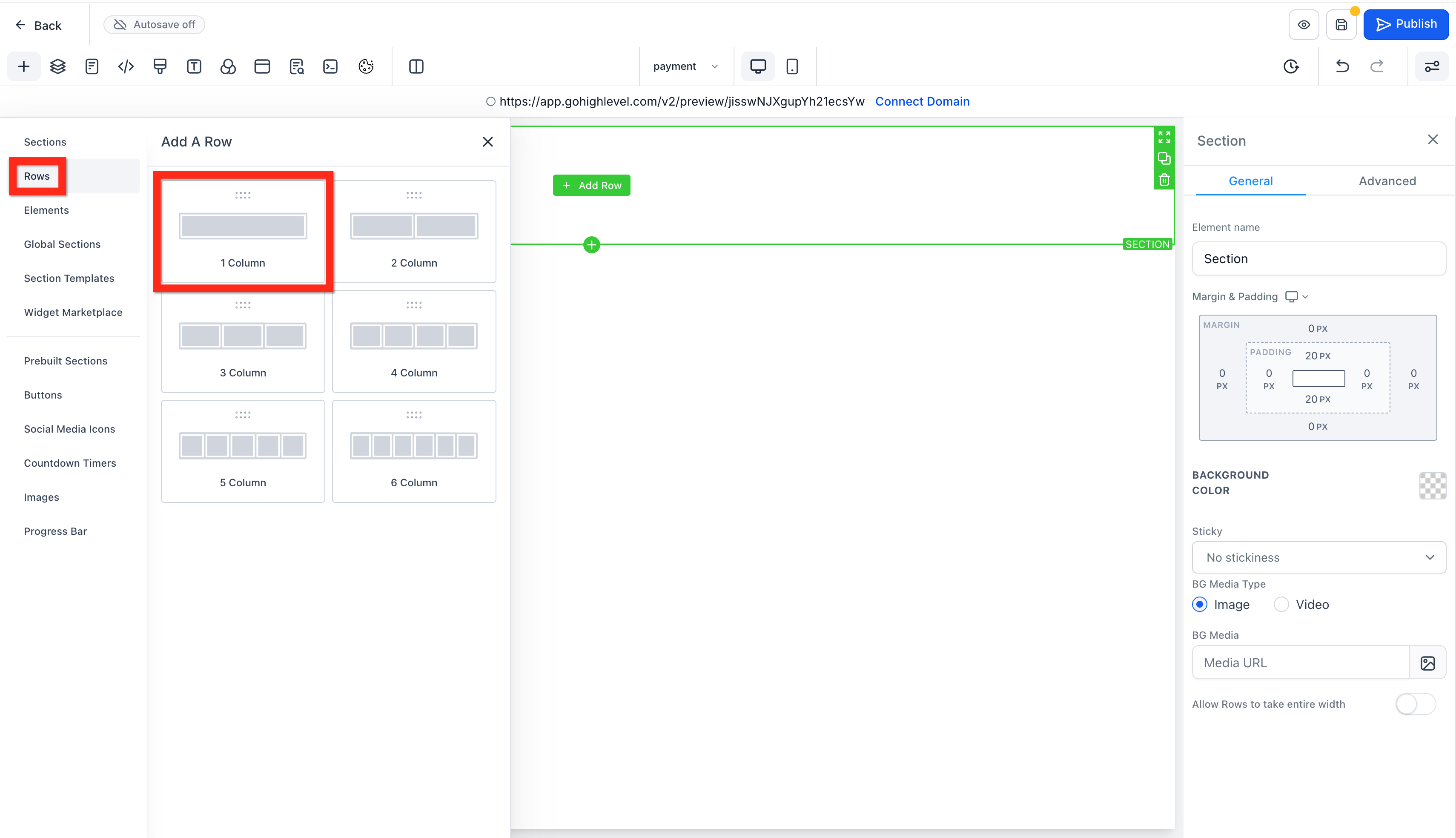
- Inside the row, add a one or two step order form.
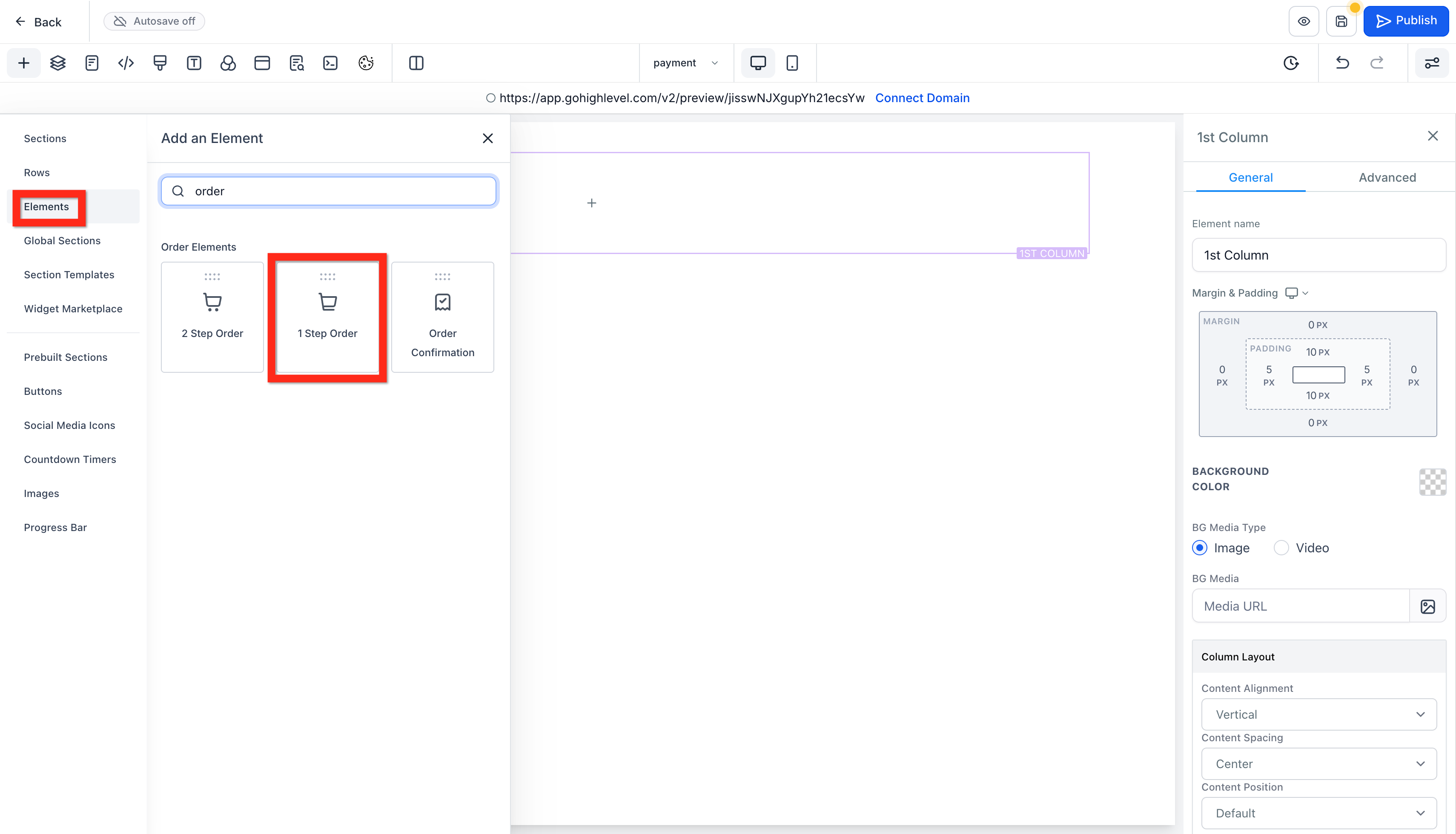
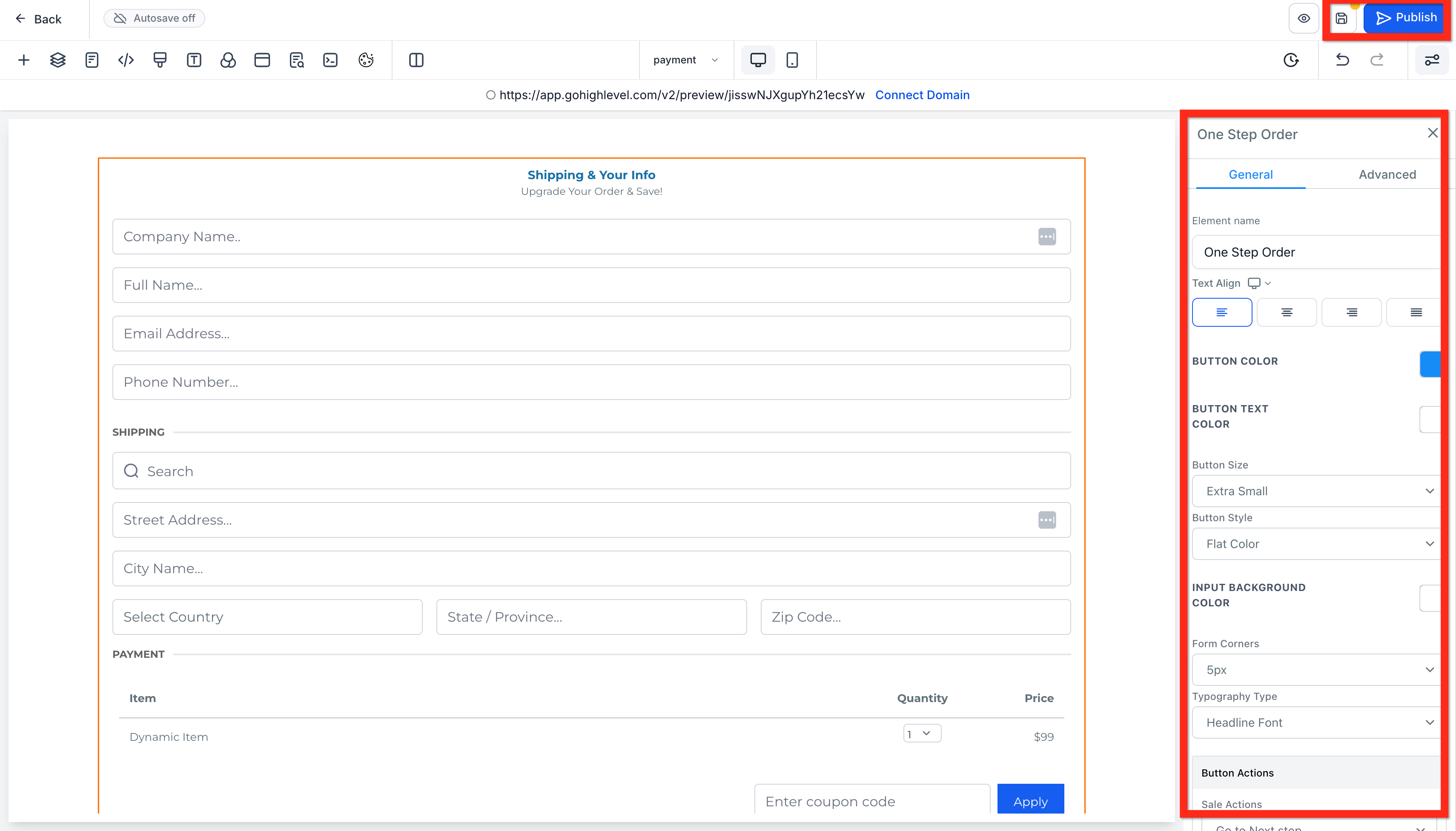
- Customize the order form, then click Save and Publish.
- Make sure the product is added to the same page as the order form.
Fantastic! Your customers can now smoothly complete their purchases. Next, why not experiment with sticky contact options to boost conversions?
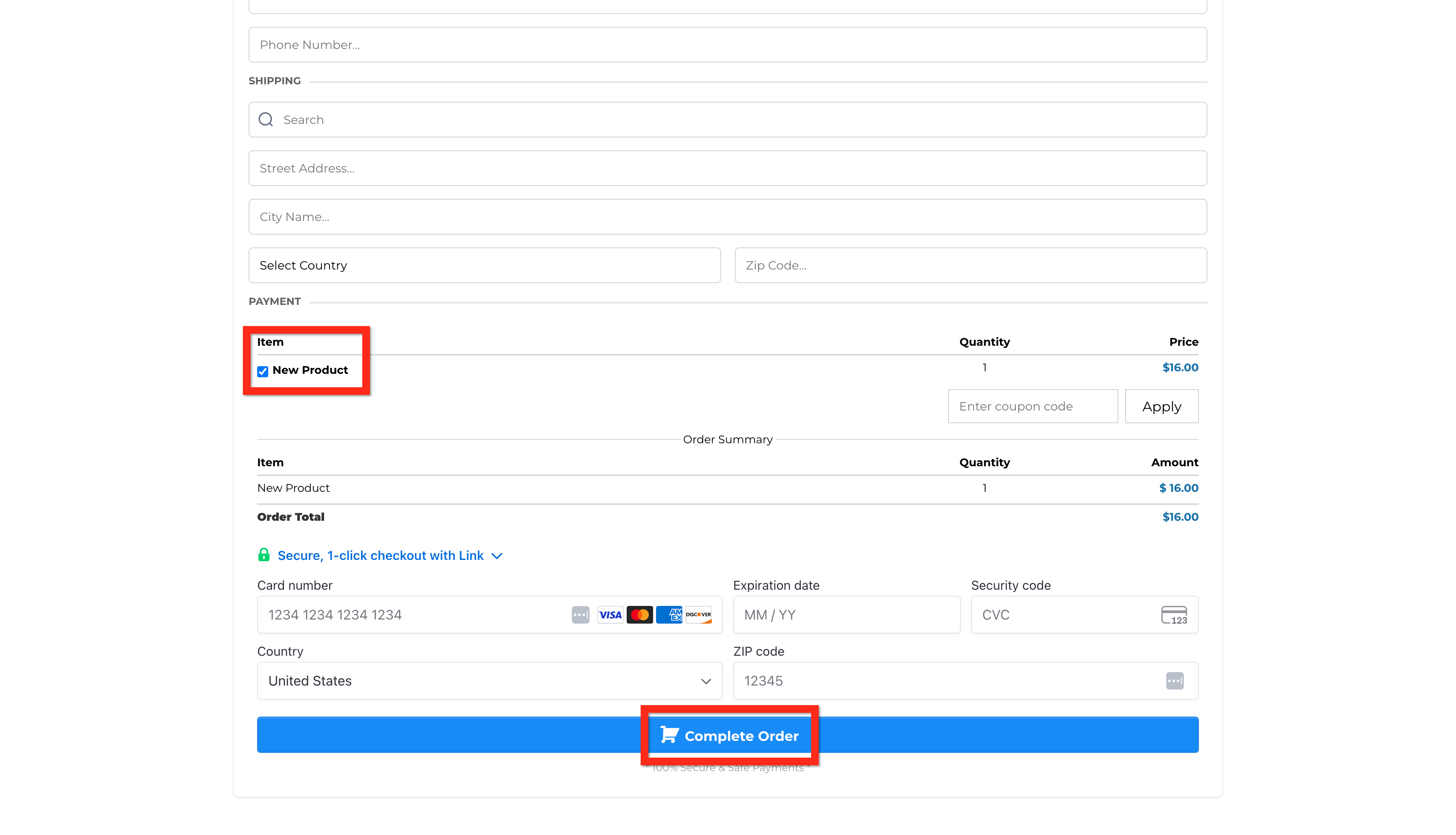
Your funnel order form should look something like this:
Frequently Asked Questions
Q: Why am I getting an error requiring a “Category ID” when creating a product in a sub-account?
This error occurs because you are attempting to create a product (often related to a SaaS plan) directly in the sub-account’s local product editor, but the system expects the product to be tied to the Agency’s SaaS structure. The required Category ID is generated by the SaaS Configurator.
To fix this:
Stop creating the product locally.
Create the product in the Agency’s SaaS Configurator first.
Return to Payments → Products in the sub-account.
Use Import from Stripe to pull the product into the sub-account.
Q: Can I change the currency of an existing product?
No. Once a product is created, its currency cannot be changed. To use a different currency, create a new product or add a new pricing entry with the desired currency selected during setup.
Q: Where can I edit my product details?
Navigate to Payments → Products, click the product name, and edit the following:
Product Name & Description
Media
Product Type (Physical or Digital)
Tax Settings
SEO & Handle
Statement Descriptor
Save your changes after editing.
Q: How do I change my product from “Physical” to “Digital”?
Go to Payments → Products.
Click the product name.
Under Prices, select the price you want to edit.
Scroll to Shipping and Delivery.
Change the dropdown to Digital.
Click Save.
Q: What is the difference between a Physical and Digital product?
Physical: Shipping fields are included during checkout.
Digital: Shipping fields are skipped for a faster checkout experience.
For digital products, download access appears only if at least one valid file has been uploaded to the product or variant.
If no files are uploaded:
The Download button will not appear on the Thank You page.
The Customer Access Center will display: “No downloads available yet.”
If files are uploaded after purchase, download access becomes available automatically. If files are removed, download access disappears immediately.
Q: Why can’t I find my product when creating an invoice?
Fortunyx filters products based on Price Type:
Standard (One-time) invoices show only One-time products.
Recurring invoices show only Recurring products.
Q: What time unit does the “Trial Period” use?
The Trial Period is always measured in days. Even if the product bills monthly or annually, entering 30 means a 30-day trial before the first charge.
Q: Why are some products showing as unavailable during preview?
This usually occurs when Inventory Tracking is enabled and stock has reached zero.
To fix:
Go to Payments → Products.
Open the affected product.
Increase stock or disable Inventory Tracking.
Q: Why are duplicated products grayed out when adding them to an invoice?
Common causes include:
Product status set to Draft instead of Published
Billing type mismatch (One-time vs Recurring)
Missing or inactive pricing
Currency mismatch
Large catalogs requiring manual review
Open the product and verify status, pricing, billing type, and currency before retrying.
Q: Why aren’t my Stripe products importing into Fortunyx?
Only recurring/subscription products can be imported from Stripe. One-time products must be created directly in Fortunyx.
Create one-time products under Payments → Products; they will sync to Stripe automatically.
Q: Why did my first product disappear and why am I getting a “Category ID is required” error?
This typically happens when:
An existing product was edited instead of creating a new one.
Required fields (like category or tax settings) were not selected.
Best Practice:
Create products one at a time using Create Product, confirm required selections, then save.
Q: Why isn’t my Stripe product appearing when I try to import it?
This may happen if the product already exists or hasn’t fully synced. You may need to delete the product in Fortunyx (this will not delete it from Stripe) and re-import it. Sync propagation can take up to 24 hours.
Q: Why is the Download button not appearing after a digital purchase?
The Download button appears only when at least one digital file has been uploaded to the product or variant. If no files are assigned, the system hides the download option. Uploading files later will automatically make the download option available.